
E13. Bluetooth Low Energy Essentials
Make the ESP32 appear on your phone over Bluetooth LE, then switch an LED by writing 1 or 0 from the phone.
Learning outcomes
- Say when Bluetooth LE is a better fit than Wi-Fi
- Explain advertising, service and characteristic in plain words
- Make the ESP32 show up in a phone's Bluetooth scanner
- Switch an LED when the phone writes a value
Parts and preparation
ESP32 board with Bluetooth LE (classic ESP32 or C3/C5/C6 - not P4 without a companion radio). USB data cable, LED + resistor on GPIO 2 (or the on-board LED). Phone with the free nRF Connect app.
Before power: inspect wiring, confirm supply voltage and ensure all connected circuits share GND.
Libraries for this lesson
In Arduino IDE 2 open Tools → Manage Libraries…. Search by the Library Manager name and install the package by the exact author below. Similar names from other authors can use different APIs and will break the example.
| Include | Library Manager name | Author | Install note |
|---|---|---|---|
BLEDevice.h | ESP32 BLE Arduino | Espressif | Built into the esp32 Arduino core (BLEDevice, BLEServer). No Library Manager install required. |
What you will do
Bluetooth Low Energy (BLE) lets a phone talk to a gadget a few metres away, with no router and no internet.
Sketch 1 makes the ESP32 appear in your phone's Bluetooth scanner. Sketch 2 lets the phone switch the LED by writing 1 or 0.

| You need | Better fit |
|---|---|
| Control from a browser, or data from the internet | Wi-Fi (ESP32 Lesson 08 to ESP32 Lesson 12) |
| A phone next to the gadget, no router | Bluetooth LE |
Advertising
A BLE gadget advertises: it sends out its name a few times a second so phones nearby can find it. When a phone connects, it can look inside.
Services and characteristics
Inside, values are grouped. A characteristic is one value the phone can read or write - here, the LED setting. A service is a group of characteristics. Each has a long ID called a UUID, so the phone can tell them apart. The IDs in sketch 2 are examples from Espressif - copy them as they are.
| Word | In this lesson |
|---|---|
| Advertising | The ESP32 announcing ESP32-yourname |
| Service | The group that holds the LED value |
| Characteristic | The LED value: 1 = on, 0 = off |
| UUID | The long ID of the service or characteristic |
Using nRF Connect
1) Upload the sketch and open nRF Connect on your phone. 2) Press Scan and find ESP32-yourname. Press Connect. 3) Sketch 2: open the Unknown Service, find the characteristic and press its up-arrow (write). 4) Choose Text (UTF-8), type 1 and press Send. The LED comes on. Send 0 to switch it off.
Code you copy as it is
Bluetooth needs some set-up lines that use C++ features beyond this course: the * after a type name, -> instead of a dot, and a class block. Every one of those lines has a comment saying what it does - you only need to change the name, the pin and what happens inside onWrite.
Wiring and safe build sequence
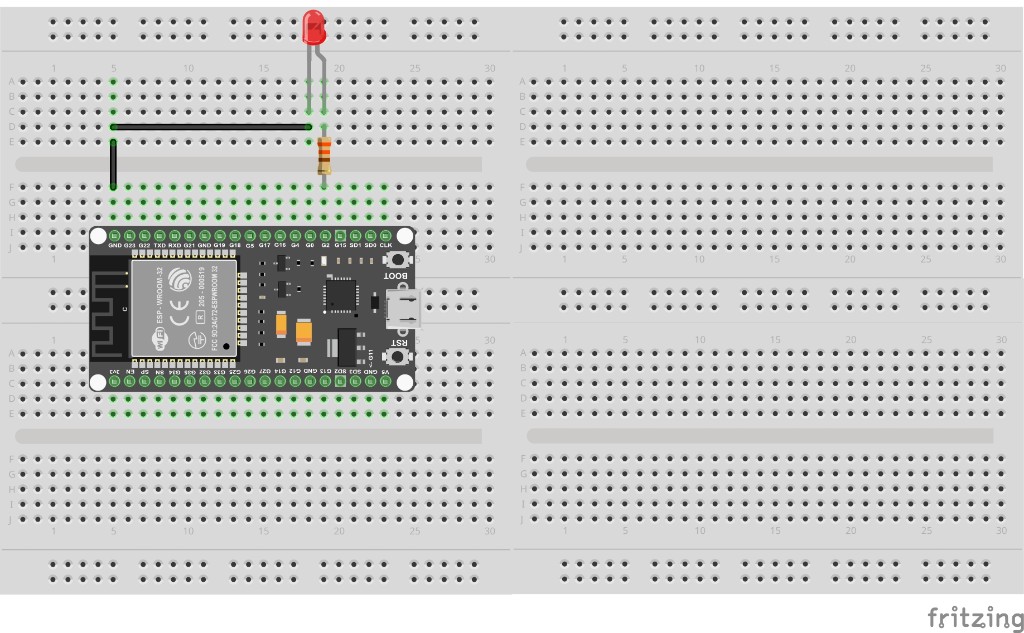
- GPIO 2 -> 220-330 ohm -> LED long leg; LED short leg -> GND (or use the on-board LED)
- USB power; a Bluetooth LE ESP32 board
- Phone within a few metres, with Bluetooth on
Worked sketch 1: Appear on the phone
Download .inoWhat this sketch is for: Change yourname, upload, then scan with nRF Connect. ESP32-yourname should be in the list.
#include <BLEDevice.h>                         // the Bluetooth LE commands

void setup() {                                 // runs once
  Serial.begin(115200);                        // start Serial at the ESP32 speed
  BLEDevice::init("ESP32-yourname");           // switch on Bluetooth LE with this name
  BLEServer* server = BLEDevice::createServer(); // something a phone can connect to (copy as it is)
  server->advertiseOnDisconnect(true);         // let the next phone connect after one leaves
  BLEDevice::startAdvertising();               // start telling nearby phones we are here
  Serial.println("Advertising - scan for ESP32-yourname"); // tell the user
}

void loop() {                                  // nothing to repeat in this sketch
}
How the code works
- The name in BLEDevice::init() is what the phone shows - make it yours so you find your own board.
- Advertising carries on by itself after setup(), so loop() can stay empty.
Worked sketch 2: Switch the LED from the phone
Download .inoWhat this sketch is for: Connect with nRF Connect and write the text 1 or 0 to the characteristic. Match the breadboard layout below before upload, or use the on-board LED.
#include <BLEDevice.h>                         // the Bluetooth LE commands

const int ledPin = 2;                          // the LED is on GPIO 2

// the library runs onWrite when the phone writes a value (copy the block as it is)
class LedCallbacks : public BLECharacteristicCallbacks {
  void onWrite(BLECharacteristic* characteristic) {
    String value = characteristic->getValue(); // the text the phone wrote
    if (value == "1") {                        // phone wrote 1?
      digitalWrite(ledPin, HIGH);              // LED on
    }
    if (value == "0") {                        // phone wrote 0?
      digitalWrite(ledPin, LOW);               // LED off
    }
  }
};

void setup() {                                 // runs once
  pinMode(ledPin, OUTPUT);                     // the LED pin is an output
  BLEDevice::init("ESP32-yourname");           // switch on Bluetooth LE with this name
  BLEServer* server = BLEDevice::createServer(); // something a phone can connect to
  server->advertiseOnDisconnect(true);         // let the next phone connect after one leaves

  // a service (a group of values) with its ID
  BLEService* service = server->createService("4fafc201-1fb5-459e-8fcc-c5c9c331914b");
  // one value inside it, with its own ID, that the phone is allowed to write
  BLECharacteristic* ledValue = service->createCharacteristic(
    "beb5483e-36e1-4688-b7f5-ea07361b26a8", BLECharacteristic::PROPERTY_WRITE);
  ledValue->setCallbacks(new LedCallbacks());  // run LedCallbacks when it is written
  service->start();                            // switch the service on

  BLEDevice::startAdvertising();               // start telling nearby phones we are here
}

void loop() {                                  // nothing to repeat - onWrite does the work
}
How the code works
- The only part you would normally change is inside onWrite: what to do with the value.
- value == "1" compares the whole text, so send exactly 1 - no spaces.
- Build from the breadboard photo: LED on GPIO 2.
Test and record evidence
Practical evidence checklist
Common faults and checks
- Board not in the scan list: check the board has Bluetooth LE (not a P4), and the phone's Bluetooth and location are on.
- Too many devices in the list: use the scanner's name filter and type your name.
- LED does not react: choose Text (UTF-8) when writing, and send just 1 or 0.
- Compile error about getValue: update the esp32 board package to version 3 or newer.
Check your understanding
Q1. When is Bluetooth LE a better fit than Wi-Fi?
Show answer
When a phone is close to the gadget and there is no router or internet.
Q2. What does advertising do?
Show answer
Sends out the gadget's name so nearby phones can find it.
Q3. What is a characteristic?
Show answer
One value the phone can read or write, such as the LED setting.
Q4. What is a service?
Show answer
A group of characteristics.
Q5. What is a UUID?
Show answer
A long ID that tells services and characteristics apart.
Q6. What text turns the LED on in sketch 2?
Show answer
1.
Q7. Which part of sketch 2 runs when the phone writes?
Show answer
onWrite inside LedCallbacks.