
E11. MQTT Publish and Subscribe
Send a counting number to an MQTT broker, then switch an LED by sending a message to the ESP32.
Learning outcomes
- Explain broker, topic, publish and subscribe
- Publish a message to a topic every few seconds
- Subscribe to a topic and act on the messages that arrive
- Watch and send messages with MQTT Explorer
Parts and preparation
ESP32 DevKit, USB, LED + resistor on GPIO 2 (or the on-board LED). Library: PubSubClient by Nick O'Leary. On your PC: MQTT Explorer (free, mqtt-explorer.com). Optional for the challenge: DHT11 on GPIO 4.
Before power: inspect wiring, confirm supply voltage and ensure all connected circuits share GND.
Libraries for this lesson
In Arduino IDE 2 open Tools → Manage Libraries…. Search by the Library Manager name and install the package by the exact author below. Similar names from other authors can use different APIs and will break the example.
| Include | Library Manager name | Author | Install note |
|---|---|---|---|
WiFi.h | WiFi | Espressif | Built into the esp32 Arduino core. |
PubSubClient.h | PubSubClient | Nick O'Leary | Install PubSubClient by Nick O'Leary via Library Manager. |
What you will do
MQTT is a way for devices to send each other short messages through a central server called a broker.
Sketch 1 publishes (sends) a counting number every 5 seconds. Sketch 2 subscribes (listens) and switches the LED when you send it 1 or 0.

Broker, topic, message
The broker is like a post office. A topic is like an address, for example wilteq/yourname/count. Publish means 'send a message to this topic'. Subscribe means 'send me every message that arrives on this topic'.
This lesson uses test.mosquitto.org, a free public broker. Anyone can see the messages, so never send anything private. Replace yourname in every topic so your messages do not mix with a classmate's.
| Word | Meaning | This lesson |
|---|---|---|
| Broker | The server that passes messages on | test.mosquitto.org |
| Topic | The address a message is sent to | wilteq/yourname/count, wilteq/yourname/led |
| Publish | Send a message | Sketch 1 sends the count |
| Subscribe | Listen for messages | Sketch 2 listens for 1 or 0 |
Watching with MQTT Explorer
Install MQTT Explorer on your PC and connect it to test.mosquitto.org, port 1883. Type wilteq/yourname/# in its topic filter to see only your topics. To send a message, type the topic and the message in the Publish box and press Publish.
Why loop() calls mqtt.loop()
mqtt.loop() keeps the connection alive and collects messages that have arrived. Call it every time round loop(). When a message arrives on a subscribed topic, the library runs your function messageArrived().
Wiring and safe build sequence
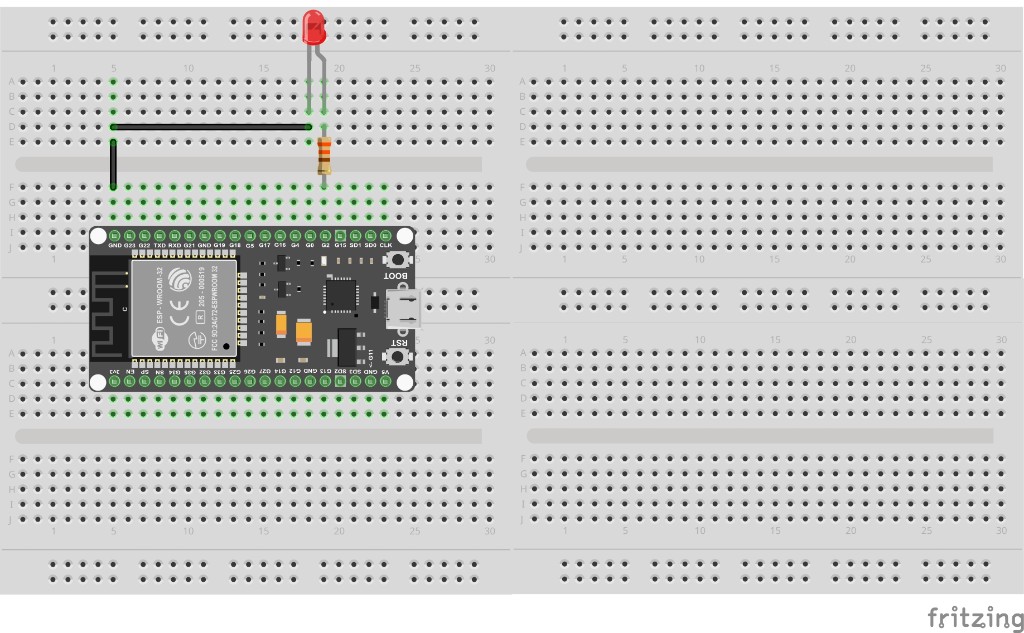
- Sketch 2: GPIO 2 -> 220-330 ohm -> LED -> GND (or use the on-board LED)
- PC with MQTT Explorer connected to test.mosquitto.org, port 1883
Worked sketch 1: Publish a count
Download .inoWhat this sketch is for: Change yourname in the topic and the client name, upload, then watch wilteq/yourname/count in MQTT Explorer.
#include <WiFi.h>                         // the Wi-Fi commands
#include <PubSubClient.h>                 // the MQTT commands

String ssid = "YOUR_WIFI_SSID";           // your Wi-Fi network name
String password = "YOUR_WIFI_PASSWORD";   // your Wi-Fi password

WiFiClient wifiClient;                    // the network connection MQTT uses
PubSubClient mqtt(wifiClient);            // the MQTT client
int count = 0;                            // the number we send

void setup() {                            // runs once
  Serial.begin(115200);                   // start Serial at the ESP32 speed

  WiFi.begin(ssid, password);             // start joining the network
  Serial.print("Connecting");             // tell the user we are trying
  while (WiFi.status() != WL_CONNECTED) { // repeat until we have joined
    delay(500);                           // wait half a second
    Serial.print(".");                    // print a dot each time
  }
  Serial.println(" connected");           // we are on the network

  mqtt.setServer("test.mosquitto.org", 1883); // the broker's address and port
}

void loop() {                             // runs over and over
  if (mqtt.connected() == false) {        // not connected to the broker?
    Serial.println("Connecting to MQTT"); // say so
    mqtt.connect("wilteq-yourname-1");    // connect with a name no one else uses
  }
  mqtt.loop();                            // keep the connection alive

  count = count + 1;                      // add one to the count
  String message = String(count);         // turn the number into text
  mqtt.publish("wilteq/yourname/count", message.c_str()); // send it to the topic
  Serial.print("Sent ");                  // a label
  Serial.println(message);                // what we sent
  delay(5000);                            // wait 5 seconds
}
How the code works
- Messages are text, so String(count) turns the number into text first.
- message.c_str() hands the text over in the form the MQTT library needs.
- Each device needs its own client name, so add your name to wilteq-yourname-1.
Worked sketch 2: Switch the LED with a message
Download .inoWhat this sketch is for: Subscribe to wilteq/yourname/led. In MQTT Explorer, publish 1 to that topic to switch the LED on, and 0 to switch it off. Match the breadboard layout below before upload, or use the on-board LED.
#include <WiFi.h>                         // the Wi-Fi commands
#include <PubSubClient.h>                 // the MQTT commands

String ssid = "YOUR_WIFI_SSID";           // your Wi-Fi network name
String password = "YOUR_WIFI_PASSWORD";   // your Wi-Fi password
const int ledPin = 2;                     // the LED is on GPIO 2

WiFiClient wifiClient;                    // the network connection MQTT uses
PubSubClient mqtt(wifiClient);            // the MQTT client

// the library runs this when a message arrives (copy the first line as it is)
void messageArrived(char* topic, byte* message, unsigned int length) {
  if (message[0] == '1') {                // first character of the message is 1?
    digitalWrite(ledPin, HIGH);           // LED on
  }
  if (message[0] == '0') {                // first character of the message is 0?
    digitalWrite(ledPin, LOW);            // LED off
  }
}

void setup() {                            // runs once
  Serial.begin(115200);                   // start Serial at the ESP32 speed
  pinMode(ledPin, OUTPUT);                // the LED pin is an output

  WiFi.begin(ssid, password);             // start joining the network
  Serial.print("Connecting");             // tell the user we are trying
  while (WiFi.status() != WL_CONNECTED) { // repeat until we have joined
    delay(500);                           // wait half a second
    Serial.print(".");                    // print a dot each time
  }
  Serial.println(" connected");           // we are on the network

  mqtt.setServer("test.mosquitto.org", 1883); // the broker's address and port
  mqtt.setCallback(messageArrived);       // run messageArrived when a message comes
}

void loop() {                             // runs over and over
  if (mqtt.connected() == false) {        // not connected to the broker?
    Serial.println("Connecting to MQTT"); // say so
    mqtt.connect("wilteq-yourname-2");    // connect with a name no one else uses
    mqtt.subscribe("wilteq/yourname/led"); // ask for messages on this topic
  }
  mqtt.loop();                            // keep the connection alive and get messages
}
How the code works
- message[0] is the first character of the message. '1' in single quotes is the character 1.
- Subscribe again every time you connect - the broker forgets you when the connection drops.
- No delay() in loop(), so messages are acted on straight away.
Test and record evidence
Practical evidence checklist
Common faults and checks
- Connecting to MQTT over and over: some school and office networks block port 1883 - try a phone hotspot.
- Nothing in MQTT Explorer: the topic must match exactly, including capital letters and your name.
- LED does not react: publish to exactly wilteq/yourname/led, and send just 1 or 0.
- PubSubClient.h not found: install PubSubClient by Nick O'Leary in Library Manager.
Check your understanding
Q1. What is an MQTT broker?
Show answer
The server that passes messages between devices.
Q2. What is a topic?
Show answer
The address a message is sent to, such as wilteq/yourname/count.
Q3. What is the difference between publish and subscribe?
Show answer
Publish sends a message; subscribe listens for messages on a topic.
Q4. Why must loop() call mqtt.loop() often?
Show answer
It keeps the connection alive and collects new messages.
Q5. Why add your name to each topic?
Show answer
So your messages do not mix with other people's on the public broker.
Q6. What message turns the LED on in sketch 2?
Show answer
1.
Q7. Should you send private data to test.mosquitto.org?
Show answer
No - anyone can read it.